7 AI Tools That Remove Backgrounds for Free in 2026
Last Updated: October 2026
Removing the background from a photo used to mean opening Photoshop, carefully selecting the subject, cleaning up the edges, and spending several minutes fixing hair, shadows, or small details.
AI has changed that.
Today, you can upload a photo to an online AI background remover and get a clean cutout in seconds. The difficult part is no longer finding a tool. The difficult part is finding one that is actually useful for free.
Some tools limit resolution. Others require an account, restrict exports, add credits, or move important features behind a paid plan. That is why the word “free” needs a closer look before you choose an AI background remover.
In this guide, we look at seven AI background removal tools and focus on the things that actually matter: ease of use, output quality, difficult edges, transparency, free access, and the type of user each tool is best suited for.
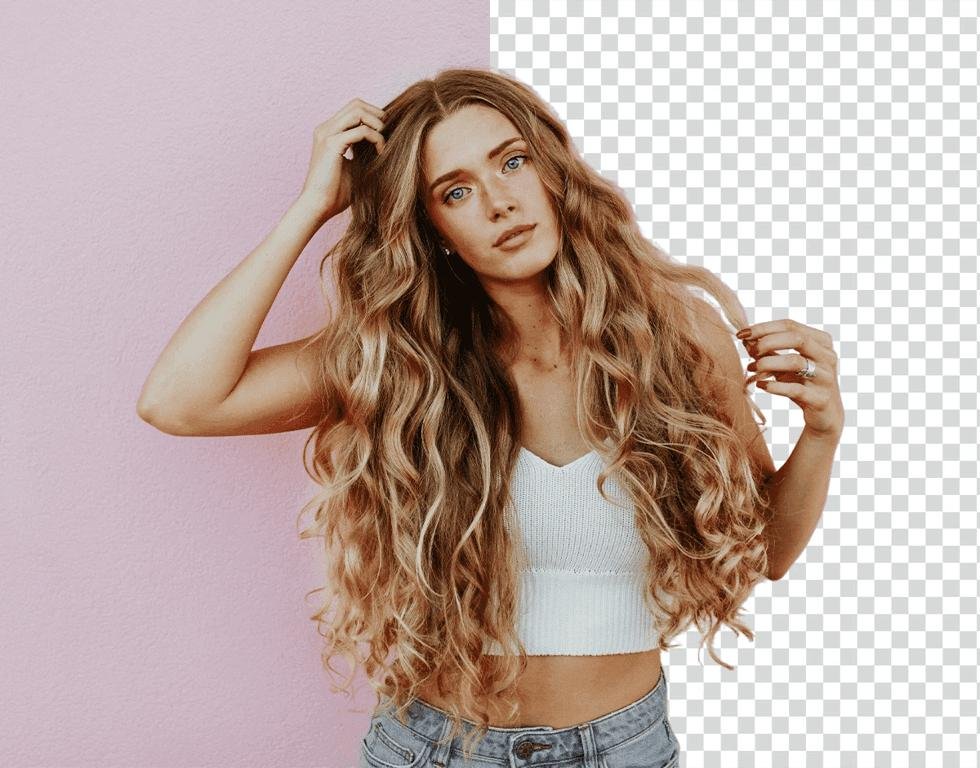
Quick Answer: The 7 Free AI Background Removers
| Tool | Best For | Free Access | Standout Feature |
|---|---|---|---|
| Pixelcut | Quick HD cutouts | Yes | No-signup HD download |
| Adobe Express | Simple editing + backgrounds | Yes | Remove and replace backgrounds |
| remove.bg | Fast automatic cutouts | Yes, with free-tier limits | Very simple workflow |
| Photoroom | Product photos | Free to start | E-commerce focused editing |
| Clipdrop | Portraits & detailed subjects | Free access available | Handles detailed subjects |
| Pixlr | Editing + background removal | Yes | Batch background removal |
| Erase.bg | Simple background editing | Free plan | Background replacement tools |
Important: Free plans and limits can change. Always check the tool itself before relying on a specific export limit or resolution.
1. Pixelcut — A Fast Option for HD Background Removal
Pixelcut Background Remover
If your main goal is simply to remove a background quickly and download a clean result, Pixelcut is worth trying.
Its current background-removal page says users can upload JPG, PNG, or HEIC images and get an HD cutout without signing up. Pixelcut also states that its free background remover produces downloads without a watermark.
Why Pixelcut stands out
The interesting part is that Pixelcut isn’t limited to basic portraits. Its examples include:
- Hair and fine edges
- Products
- People
- Animals
- Cars
- Graphics
The tool automatically identifies the subject and removes the surrounding background.
It also provides a refinement option when an edge needs additional work.
Best for
Pixelcut is particularly useful for:
- YouTube thumbnails
- Product photos
- Social media images
- Profile pictures
- Small online stores
- Quick transparent PNGs
How to use Pixelcut
- Open the background remover.
- Upload your image.
- Let the AI detect the subject.
- Check the edges.
- Refine the result if necessary.
- Download the transparent image.
Our takeaway: If you want a quick browser-based cutout without learning Photoshop, Pixelcut is one of the easiest places to start.
2. Adobe Express — Remove and Replace the Background
Adobe Express Background Remover
Adobe Express takes a slightly different approach.
Instead of treating background removal as the final step, it lets you continue editing the image after the background has been removed.
Adobe currently offers its background-removal feature as a free tool and says no credit card is required for the basic feature.
What makes it useful?
Imagine you have a product photo sitting on a messy table.
You can:
Original photo → Remove background → Add a clean background → Add text → Create a social graphic
That makes Adobe Express particularly useful for content creators and small businesses.
Adobe’s documentation also explains that the tool automatically identifies the subject and removes the background. For a transparent result, the image can be downloaded as a transparent PNG.
Best for
- Social media graphics
- Product promotions
- YouTube thumbnails
- Marketing images
- Presentations
- Simple business designs
One thing to remember
AI background removal isn’t perfect on every image. Adobe itself notes that fine details or low-contrast areas can sometimes be removed, so you should inspect the result before publishing it.
3. remove.bg — One of the Simplest AI Background Removers
remove.bg Background Remover
remove.bg is one of the most recognizable dedicated background-removal tools.
Its workflow is extremely simple:
Upload → AI processing → Background removed
The service describes its tool as an automatic background remover designed to isolate subjects from images.
Why people still use it
The biggest advantage is simplicity.
You don’t need to learn selections, masks, layers, or complicated editing controls. The service is designed around one primary job: separating the subject from the background.
It can be useful for:
- Portraits
- Product images
- Cars
- Animals
- Graphics
- Social media content
The free-tier catch
This is where you should pay attention.
“Free background removal” does not necessarily mean unlimited full-resolution downloads. Current comparisons of free background-removal services show that remove.bg’s free offering can be limited to lower-resolution output, while higher-resolution usage can require credits or a paid plan.
So if you’re only making a quick social post, the free option may be enough.
If you need large product images for an online store, check the current export conditions first.
4. Photoroom — Particularly Useful for Product Photos
Photoroom Background Remover
Photoroom is built heavily around product photography and visual content for sellers.
Its background remover lets you upload an image, automatically remove the background, and then keep it transparent, make it white, or choose another background. It supports PNG, JPEG and WEBP downloads.
Why e-commerce sellers may like it
Consider a simple product photo:
Phone camera → messy room → AI background removal → clean product image
That can save a surprising amount of editing time.
Photoroom also offers AI-generated backgrounds, allowing users to place products into more professional-looking scenes.
Best for
- Shopify products
- Marketplace listings
- Clothing photos
- Jewellery
- Food products
- Small businesses
- Product catalogs
Is Photoroom free?
You can start using the background-removal workflow for free, but some higher-level features and export options depend on the current plan. Photoroom’s current documentation says exporting counts against export limits, so users should check the current plan details before assuming unlimited free exports.
5. Clipdrop — Good for Portraits and Detailed Subjects
Clipdrop Remove Background
Clipdrop is another interesting option when the image contains more complicated details.
Its current background-removal tool supports multiple files and specifically highlights use cases such as:
- Portraits
- Products
- Drawings
- Small details
- Fine hair
Why detailed edges matter
A simple object with a hard edge is easy for AI to separate.
Hair is harder.
Fur is harder.
Thin glasses are harder.
Transparent or semi-transparent objects can be harder still.
That means a background remover shouldn’t only be tested on a simple object against a plain wall.
Try this test
Take four images:
- A normal portrait
- A person with curly or loose hair
- A product photo
- A pet with fur
Run the same four images through different tools.
Then compare the edges.
That’s a much more useful test than simply asking which website claims to be “the best.”
6. Pixlr — Background Removal Plus Image Editing
Pixlr Background Remover
Pixlr is useful for people who want more than just a cutout.
Its AI-powered Background Remover automatically detects the foreground and removes the background. Pixlr also supports batch processing, allowing users to work with multiple images and save the results together.
Why that matters
Imagine you’re preparing 20 product photos.
Using a single-image workflow can become repetitive:
Upload → remove → download → repeat
Batch processing can make this much faster.
Pixlr also lets you use transparent, white, or black backgrounds, depending on what you’re creating.
Best for
- Multiple product images
- Social media graphics
- Designers
- Students
- Content creators
- Quick image editing
Pixlr also offers other AI image tools, so you can continue editing after removing the background.
7. Erase.bg — Simple AI Background Editing
Erase.bg Background Remover
Erase.bg is designed specifically around background removal and related image editing.
Its current site supports several image formats and offers AI background removal along with background replacement and editing features.
The service also provides a free plan, although additional downloads and advanced features can depend on the current plan.
What can you do with it?
You can use it to:
- Remove a photo background
- Replace the background
- Create profile pictures
- Prepare product images
- Edit images for social media
- Work with different image formats
Best for
Erase.bg is worth trying when you want a straightforward background-removal workflow without opening a full desktop editor.
The Real Test: Which Tool Works Best on Difficult Images?
This is where most “best AI background remover” lists stop.
But the easiest photo isn’t really a test.
If you want to know whether an AI background remover is actually useful, test it with difficult images.
Test 1: Hair
Use a portrait with loose hair.
Look for:
- Missing hair strands
- White halos
- Jagged edges
- Background fragments between hair
Test 2: Fur
Try a dog or cat.
The AI needs to distinguish tiny fur strands from the original background.
Test 3: Product Photography
Use a product with detailed edges.
Check whether the AI accidentally removes part of the product.
Test 4: Transparent Objects
Try a glass bottle or similar object.
Transparency can be significantly harder than a normal solid object.
Test 5: Low-Contrast Images
Use an object whose color is similar to the background.
This is where many automatic tools can struggle.
What Does “Free” Actually Mean?
This is probably the most important section of this article.
A tool can advertise itself as free while still having restrictions.
Before choosing an AI background remover, check these six things:
1. Is the download actually free?
Some services let you process an image for free but charge for downloading the final high-resolution version.
2. Is there a resolution limit?
A free low-resolution image may be fine for WhatsApp or a small social post but unsuitable for printing or an e-commerce listing.
3. Is a watermark added?
Always check the final downloaded image.
4. Is an account required?
Some tools work immediately without registration, while others require an account before downloading.
5. Is there a usage limit?
A tool may be free for a few images but require payment after you reach a daily, weekly, or monthly limit.
6. Can you use the result commercially?
If you’re creating product images for a business, check the service’s current terms before using the output commercially.
How to Remove a Background Without Photoshop
You don’t necessarily need Photoshop for a basic background-removal task.
Here’s the simple workflow:
Step 1: Choose a good image
Use a photo where the subject is clearly visible.
Step 2: Upload it
Open one of the AI background-removal tools above.
Step 3: Let AI detect the subject
The tool automatically separates the foreground from the background.
Step 4: Inspect the edges
Don’t immediately download the result.
Zoom into:
- Hair
- Fingers
- Clothing
- Fur
- Glass
- Small objects
Step 5: Fix anything that looks wrong
Some tools offer manual refinement options.
Step 6: Download as PNG
If you want the background to remain transparent, choose PNG when available.
Which Free AI Background Remover Should You Try First?
There isn’t one tool that is perfect for every image.
Instead, choose based on what you’re doing.
For quick HD cutouts: Pixelcut
For design and background replacement: Adobe Express
For simple one-click removal: remove.bg
For product photography: Photoroom
For portraits and detailed subjects: Clipdrop
For batch editing: Pixlr
For simple background editing: Erase.bg
The best choice can also change depending on the exact image you’re working with.
A Better Way to Choose: Test the Same Image
Here’s a simple experiment you can do yourself.
Take one image and upload it to three or four tools.
Use exactly the same original file.
Then compare:
| Test | What to Look For |
|---|---|
| Hair | Fine strands preserved? |
| Face | Any missing edges? |
| Clothing | Clean outline? |
| Product | Any part removed? |
| Shadow | Natural or completely removed? |
| Transparency | Correct transparent PNG? |
| Download | Free or paid? |
| Watermark | Present or absent? |
This gives you a much more realistic answer than simply reading a “Top 10” list.
Why AI Background Removal Is Useful
AI background removal isn’t only for graphic designers.
It can be useful for:
YouTube Creators
Remove the background from a person and place them on a thumbnail.
Online Sellers
Create cleaner product images without photographing every item in a studio.
Students
Prepare images for presentations and assignments.
Social Media Creators
Create profile pictures, posts, thumbnails and promotional graphics.
Small Businesses
Make product photos look more consistent across websites and social platforms.
Freelancers
Prepare client images faster without manually tracing every subject.
Final Verdict
AI background removal has become much easier, but “free” doesn’t always mean unlimited or full-resolution.
The smartest approach is to choose a tool based on the image you’re working with rather than blindly choosing the first result on Google.
For a quick cutout, try Pixelcut or remove.bg.
For designs and background replacement, Adobe Express is useful.
For products, Photoroom deserves a look.
For more detailed subjects, test Clipdrop.
For multiple images, Pixlr can be particularly useful.
And if one tool produces a poor result, don’t immediately start manually editing the entire image. Try the same image in another AI background remover first.
The best AI background remover is the one that gives you a clean edge, the output quality you actually need, and a free plan that matches your use case.
Frequently Asked Questions
What is the best free AI background remover?
There is no single tool that wins for every type of image. Pixelcut, Adobe Express, remove.bg, Photoroom, Clipdrop, Pixlr and Erase.bg all approach background removal differently.
Can I remove an image background without Photoshop?
Yes. Browser-based AI tools can automatically remove backgrounds without requiring Photoshop or advanced editing skills.
Can AI remove backgrounds from hair?
Yes, modern AI background removers can handle hair, but results vary. Fine or flyaway hair is one of the best ways to test the quality of a background-removal tool.
Can I make a transparent PNG?
Yes. Several of the tools in this guide support transparent-background workflows. Make sure you select PNG when downloading if you want transparency.
Are free AI background removers really free?
Some are genuinely free for basic use, while others impose limits on resolution, exports, credits or advanced features. Always check the current free-tier conditions before using a tool for a large project.
Can I use AI background removal for product photos?
Yes. Tools such as Photoroom are specifically designed around product photography and background editing.
Do I need to install software?
No. Most of the tools covered in this article work directly in a web browser.
Which images are hardest for AI background removers?
Images with flyaway hair, fur, transparent objects, low contrast, motion blur and complicated overlapping subjects can be more difficult than simple product or portrait photos.